A wallpaper is a background
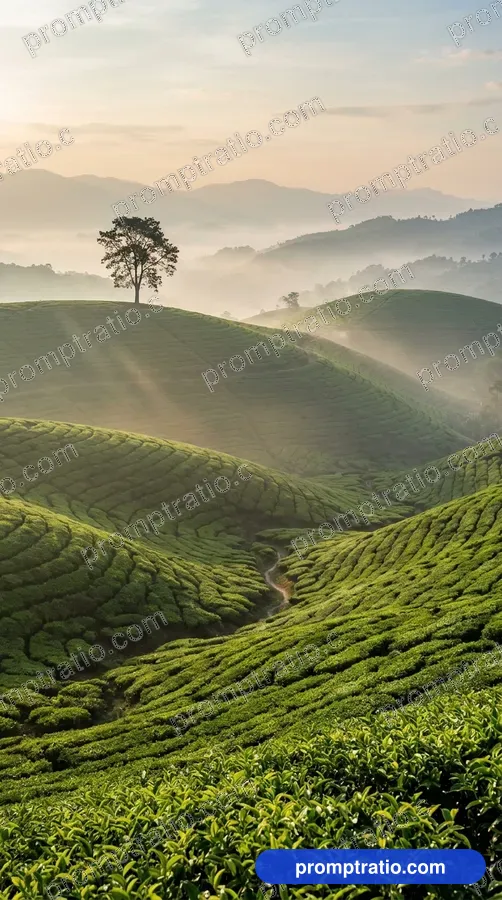
A post is looked at once; a wallpaper is looked through every day. Its job is to sit behind the clock, notifications and app icons without making them hard to read. That is why the busiest, most detailed pictures often make poor wallpapers, and why calm pictures with one strong area of interest work best.
Before you write the prompt, decide where the interesting part should be. On a phone lock screen, the clock covers the top quarter and the shortcuts sit at the bottom. On a home screen, icons cover most of the middle. On a desktop, icons usually line the left edge and the taskbar sits at the bottom.
Pick the right shape
Phones are tall: 9:16 or taller. Desktop screens are wide: 16:9 for most monitors. In our gallery, Google Flow made 9:16 pictures at 768 × 1376 pixels and 16:9 pictures at 1376 × 768. Those sizes look fine on most phones, though a large modern phone or a 4K monitor has more pixels than that, so an upscaler helps if you want every edge sharp.
Set the ratio in the tool before you generate, and open the prompt with the shape: "A vertical phone wallpaper of…" or "A wide desktop wallpaper of…". The tool will then compose the picture for that frame instead of cutting a square in half.
Leave calm areas
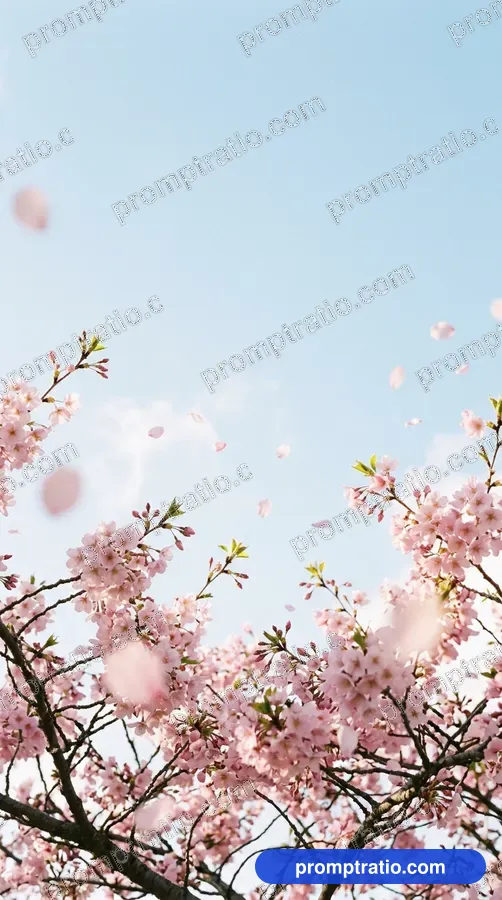
Ask for space where your screen needs it. For a lock screen: "empty sky in the top third". For a desktop: "the subject on the right, open space on the left". Plain areas such as sky, water, a wall, mist or a dark gradient make text and icons easy to read.
Our mobile wallpaper preview marks the top 24 percent of a 9:16 frame and the bottom 12 percent as the areas a lock screen usually covers. Keep faces and important details out of those bands.
Subjects that work
Some subjects make good wallpapers again and again, because they have calm areas built in.
- Landscapes with a big sky: mountains at dawn, a lone tree in a field, a quiet lake.
- Space: a planet rising over a horizon, a nebula, a starry sky over a desert.
- Minimal shapes: a single object on a flat color, soft gradients, simple geometric forms.
- Close textures: leaves with water drops, sand ripples, wood grain, folded fabric.
- Calm city scenes: a rainy street at night with reflections, rooftops at blue hour.
Dark or light
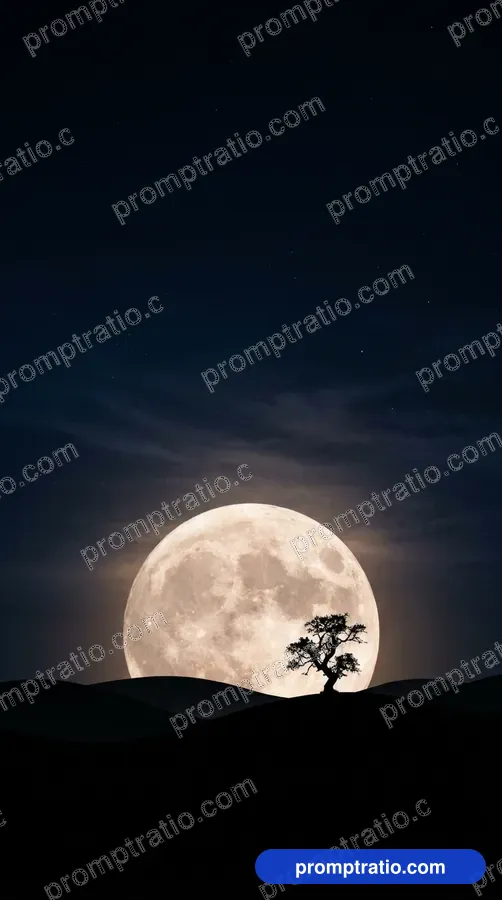
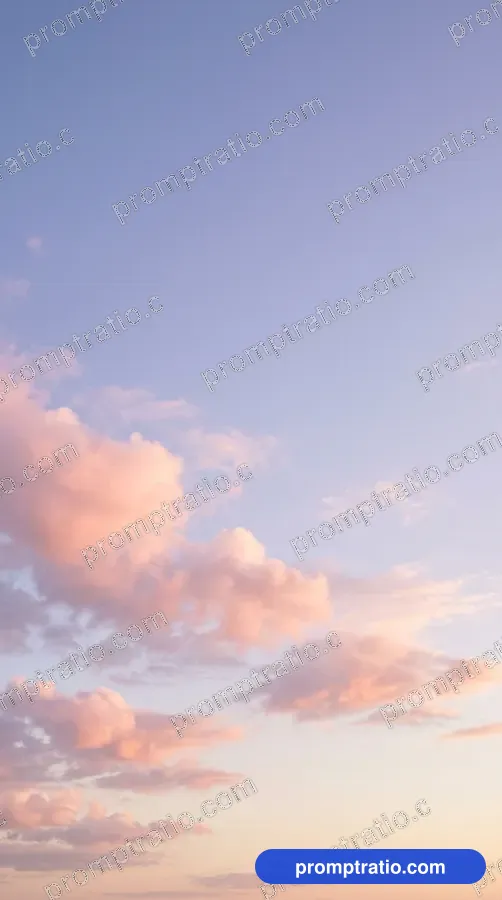
Dark wallpapers are easier on the eyes at night and can save battery on phones with OLED screens. If you use a dark theme, ask for "a mostly dark scene" or "low key lighting" and keep the bright part small. If you prefer light themes, ask for "soft pastel colors" or "high key lighting" so white icons and text still stand out against it, or switch your icons to dark.
Avoid strong patterns behind the icons in either case. Fine stripes or busy textures in the middle of the screen make labels flicker and hard to read.
Two monitors and lock screens
For two monitors side by side, you need a very wide picture, twice as wide as a single 16:9 screen. Most image tools do not make that shape directly. Generate a 16:9 scene with a gap in the middle, such as a valley between two mountains, then extend it with an outpainting tool, or choose a scene that still works when cut into two halves.
For a lock screen that changes, make a small series: the same scene at dawn, midday, dusk and night. Keep the prompt identical and change only the light words. The set looks planned rather than random.
Example prompts
Phone: "A vertical phone wallpaper of a single red maple tree on a misty hill at dawn, empty pale sky in the top third, soft light, calm and quiet. No text."
Desktop: "A wide desktop wallpaper of a quiet alpine lake at blue hour, mountains reflected in still water on the right half, open dark sky and water on the left, no people. No text."
Minimal: "A vertical phone wallpaper of a small white paper boat on a deep navy background, lots of empty space, soft shadow. No text."
Keep a collection
Once you find a style you like, make a small collection rather than one picture: the same mood across different subjects, or the same subject across seasons. Switching between them keeps the screen fresh without losing the look you chose.
Store the prompts with the pictures. When the tools improve, you can run the same words again and get a sharper version of a wallpaper you already love.
Check it on your own screen
Set the wallpaper and use your phone or computer for a day. If you keep noticing the picture instead of your apps, it is too busy. If icons are hard to find, move the subject or darken the area behind them. The best wallpapers are the ones you stop noticing until you look for them.
The phone, lock screen and desktop wallpaper categories on PromptRatio have tested prompts in the right shapes; each prompt page shows the crop preview for your screen size before you copy it.
Tested prompts on this topic
Every prompt in these categories comes with the picture it made, so you can try the ideas above on a prompt that already works: Phone Wallpapers, Lock Screens, Desktop Wallpapers and Dual Monitor Wallpapers. To trim a finished picture to an exact platform size, use the free crop tool.