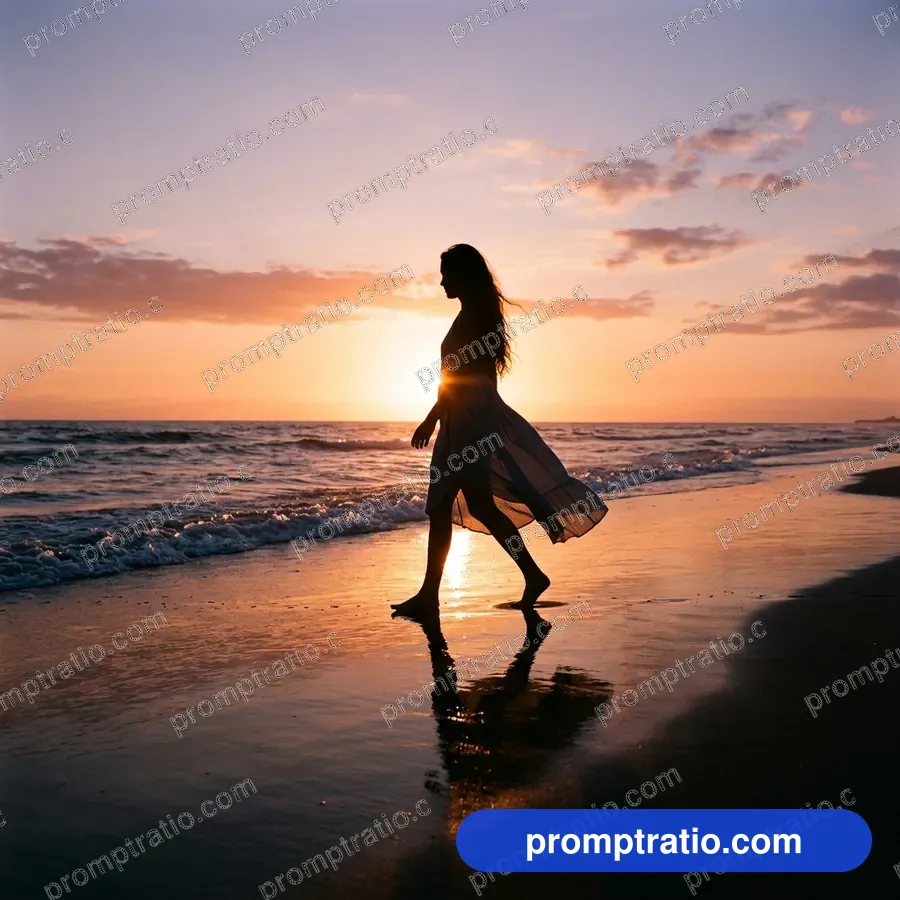
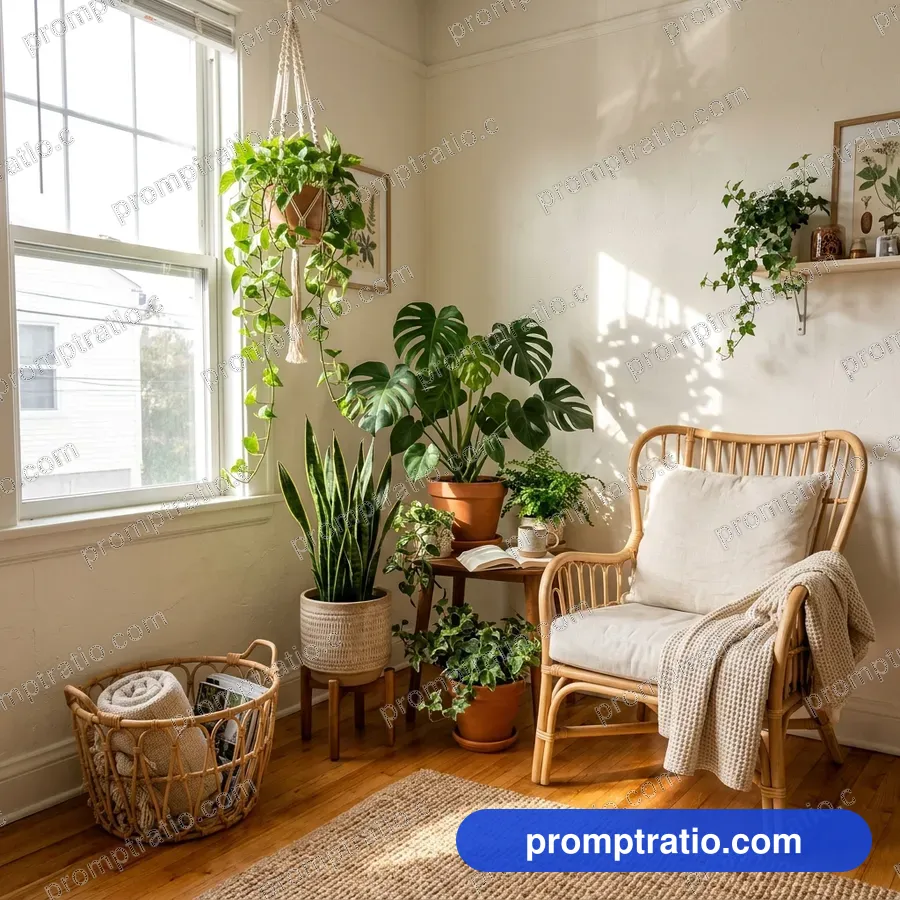
What an aspect ratio is
An aspect ratio is the relation between a picture's width and its height. A 1:1 picture is as wide as it is tall. A 16:9 picture is wide, like a TV screen. A 9:16 picture is the same shape turned on its side: tall, like a phone held upright. The ratio says nothing about size; a 16:9 picture can be 1376 pixels wide or 3840.
Every platform shows pictures in a few fixed shapes. When your picture has a different shape, the platform crops it or adds empty bars. Either way, part of what you made is lost or wasted. Choosing the right ratio at the start means the important part of the picture stays in view.
The ratios most people need
These are the shapes the platforms on PromptRatio use. They change from time to time, so check the platform's own help page if exact numbers matter.
- 1:1 (square): Instagram and Facebook feed posts, profile pictures, many ads.
- 4:5 (portrait): Instagram feed posts that take up more of the screen.
- 9:16 (tall): Reels, Shorts, Stories, TikTok covers and phone wallpapers.
- 16:9 (wide): YouTube thumbnails, presentation slides, desktop wallpapers and video frames.
- 2:3 (tall): Pinterest pins and many printed posters.
- 3:2 (landscape): classic photo prints and blog headers.
- 1.91:1 (very wide): link previews on Facebook, X and LinkedIn.
What our pictures came out at
Image tools do not offer every ratio. In our own gallery, every Google Flow picture came out in one of three shapes: 1:1 at 1024 × 1024 pixels, 16:9 at 1376 × 768 and 9:16 at 768 × 1376. ChatGPT pictures came in 1:1 at 1254 × 1254, 2:3 at 1024 × 1536 and 3:2 at 1536 × 1024. Those are the sizes the tools returned for us; they may change as the tools are updated.
So for a 4:5 Instagram post or a 1.91:1 link preview, you generate in the nearest shape the tool offers and crop. A 1:1 picture cropped to 4:5 loses a fifth of its height; a 16:9 picture cropped to 1.91:1 loses only a sliver. The closer the starting shape, the less you lose.
How to set the ratio in the tool
In Google Flow, pick the ratio in the settings before you send the prompt. In ChatGPT, ask for the shape in the same message, for example "make it a tall 2:3 image". Writing the shape into the prompt itself ("A vertical photo of…") also helps the tool compose for that frame, so the subject is not cut off at the edges.
On PromptRatio, the ratio buttons above each prompt rewrite the prompt for the shape you choose and show a live crop preview, so you can see what each platform will keep before you generate anything.
Compose for the crop you will make
If you know one picture will be used in several places, compose for the smallest shared area. Keep the subject near the middle and leave some empty room around it. A centered subject survives a crop from 16:9 to 1:1; a subject standing at the far left of a wide frame does not.
Text is the part most often lost. A title placed near the top of a 9:16 Reel cover can be hidden behind the app's own buttons. On a 9:16 Reel cover our crop preview marks about the top 14 percent and the bottom 22 percent as covered by buttons and captions; keep important words in the band between.
Tall or wide: which to make first
If you can only make one version, make the shape of the place where most people will see it. For a creator whose audience lives on Reels, that is 9:16. For a channel on YouTube, it is 16:9 for the thumbnail. Converting tall to wide, or wide to tall, always throws away more than half of the picture, so it rarely works well.
When you need both, generate both. Run the same prompt twice, once in each shape, and change only the opening words ("A wide photo of…", "A vertical photo of…"). The tool will compose each one for its frame instead of you cutting one to fit.
A quick decision list
If you are unsure, answer two questions. Where will most people see it: on a phone held upright, or on a wide screen? And will it carry text? A phone audience and no text means 9:16. A phone audience with a title means 4:5 or 1:1 with space for words. A wide screen means 16:9, with the subject off center if a title goes beside it.
Resolution and print
Ratio and resolution are different questions. For screens, the sizes above are enough for posts, covers and thumbnails. For print, you need more pixels: a 1024-pixel square printed at a sharp 300 dots per inch is only about 3.4 inches wide. Use an upscaler for posters, and choose a ratio that matches the frame you will buy, such as 2:3 for a 12 × 18 inch print.
When you are ready to trim a picture to an exact platform size, the free crop tool on PromptRatio does it in the browser, with presets for every platform listed above.
Tested prompts on this topic
Every prompt in these categories comes with the picture it made, so you can try the ideas above on a prompt that already works: Instagram Posts, Reels & Shorts Covers, YouTube Thumbnails, Phone Wallpapers, Desktop Wallpapers and Pinterest Pins. To trim a finished picture to an exact platform size, use the free crop tool.