Pixel Art Bakery Street 16:9
 1:1AI-generated · Google Flow
Pixel Snow Train
A night train in a snowy village.
Curated by Bhawani Singh · Added · Image made with AI (Google Flow)
Platform
Aspect ratio
Prompt for IG Square (1080 × 1080)
Tested on Google FlowA wide pixel art scene of a small train crossing a snowy village at night with lit windows and falling snow in a limited colour palette. No text. Compose as square 1:1 for IG Square, with the main subject fully inside the frame and safe margin on every side.
Paste into Google Flow and pick the closest ratio in its settings. Finish exact sizes in the crop tool.
Did this prompt work for you?
Tried in:
Be the first to tell others how it went
Live Crop Preview
How this image crops in each format. If a crop loses the subject, generate that ratio from the prompt above.
Crop this picture exactly, at full size, in the Crop ToolAbout this prompt
We made the picture above with this prompt on Google Flow. It has a pixel art style, cold night light and a cosy, quiet mood, and it sits in the Pixel Art collection.
The frame is 16:9 (wide), and our original measures 1376 × 768 pixels. That shape is an exact fit for YouTube thumbnails, X posts and desktop wallpapers; LinkedIn posts and Facebook posts take it with a small crop. It was made with wallpapers in mind.
- Style
- Pixel art
- Lighting
- Cold night light
- Mood
- Cosy, quiet
- Use case
- Wallpapers
Made for:Desktop Wallpapers
Make this prompt your own
- Light
- The words “at night” set the light. Swap them for “night glow” or “bright daylight” to change the time of day and the feel.
- Rules
- The last words, “No text”, stop the tool from writing on the picture. That leaves clean space for your own title.
Same theme, another look
In other light: Pixel Girl in a Rainy Greenhouse (soft rain light), Pixel Desert Caravan (moonlit glow) and Pixel Forest Shrine (soft green light).
In another style: Pixel Art Dragon Boss (16-bit pixel art).
How to change this prompt
Worked examples: one part of this prompt as it is, then rewritten. Paste the new words in place of the old ones, or copy the whole prompt with the change already made.
Add a light
Now: A wide pixel art scene of a small train crossing a snowy village at night with lit windows and falling snow in a limited colour palette
Try: A wide pixel art scene of a small train crossing a snowy village at night with lit windows and falling snow in a limited colour palette, bright morning light
The prompt names no light of its own, so adding “bright morning light” after the opening words steers the picture away from the cold night light it came out with.
Try another style
Now: A wide pixel art scene of a small train crossing a snowy village at night with lit windows and falling snow in a limited colour palette
Try: A wide pixel art scene of a small train crossing a snowy village at night with lit windows and falling snow in a limited colour palette, in a 16-bit pixel art style
This turns the pixel art look into 16-bit pixel art, a style other prompts in this collection use; the rest of the words stay.
Move the camera
Now: A wide pixel art scene of a small train crossing a snowy village at night with lit windows and falling snow in a limited colour palette
Try: A wide pixel art scene of a small train crossing a snowy village at night with lit windows and falling snow in a limited colour palette, as a close-up with a blurred background
Adding “as a close-up with a blurred background” after the opening words changes how close and from where we look, while the subject stays the same.
Which model gives what
“Pixel Snow Train” was made on Google Flow, which returned this 16:9 frame at 1376 × 768 pixels. All 78 prompts in Pixel Art were made on Google Flow.
In our gallery ChatGPT pictures come in 1:1 at 1254 × 1254, 3:2 at 1536 × 1024 and 2:3 at 1024 × 1536, and none of them are 16:9. Run this prompt there and expect the nearest of those shapes, then crop it back to 16:9.
How to use this prompt
- 1Pick your platform or ratio at the top. The prompt rewrites itself for that size.
- 2Press Copy Prompt, open Google Flow and paste it. For this picture’s shape, pick 16:9 in its settings before you send.
- 3Make it yours: change the colours, place or product in the prompt’s words before you send it.
- 4Generate two or three times and keep the best. For an exact YouTube size, finish it in the Crop Tool.
Questions
Is this prompt free?
Yes. Copying the prompt is free for everyone. Signed-in visitors can also download the full-size image without a watermark, 10 images a day.
Will I get exactly this image?
Close, not identical. AI tools make a new picture every time, so the style, light and mood will match while faces and small details change. Run it a few times and pick the one you like.
Does it work outside Google Flow?
It was tested on Google Flow. It also works in ChatGPT and most other image tools, though results vary from tool to tool.
Which platforms is this size good for?
It was made in 16:9 (wide), which suits YouTube, X, LinkedIn, Facebook, Desktop Wallpaper. For any other size, choose it with the buttons at the top; the prompt and the crop preview change with it.
Can I use the image for my business?
What you make belongs under the rules of the AI tool you used, so check its terms first. Read our disclaimer before using images for ads or products.
Related Pixel Art Prompts
Pixel Art Bakery Street 16:9 Pixel Forest Temple 16:9
 Pixel Art Desert Oasis 16:9
 Pixel Cricket Match 16:9
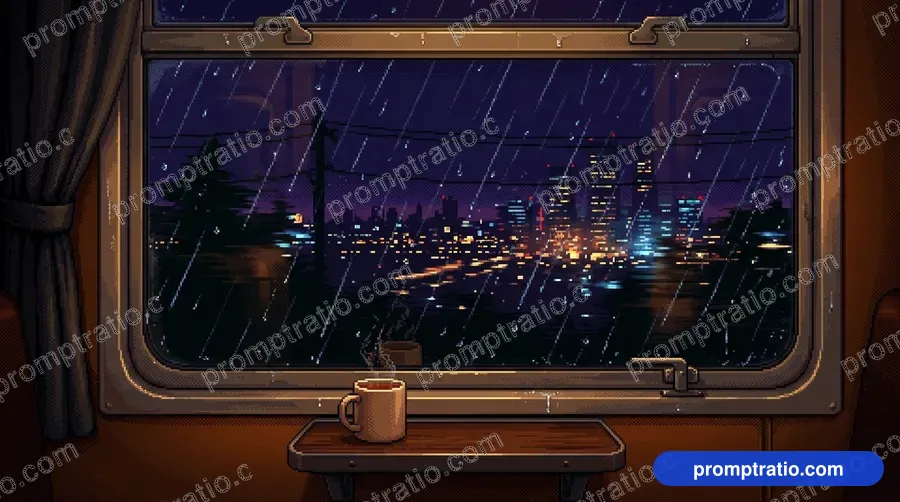 Pixel Train Window at Night 16:9
 Pixel Farm Sunset 16:9
 Pixel Art Train Journey 16:9
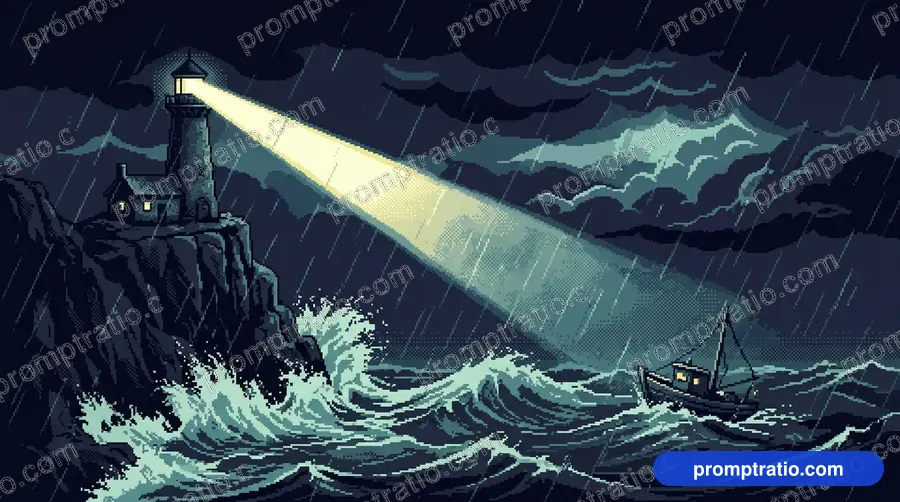 Pixel Lighthouse in a Storm 16:9
 Pixel Neon Rooftop 16:9
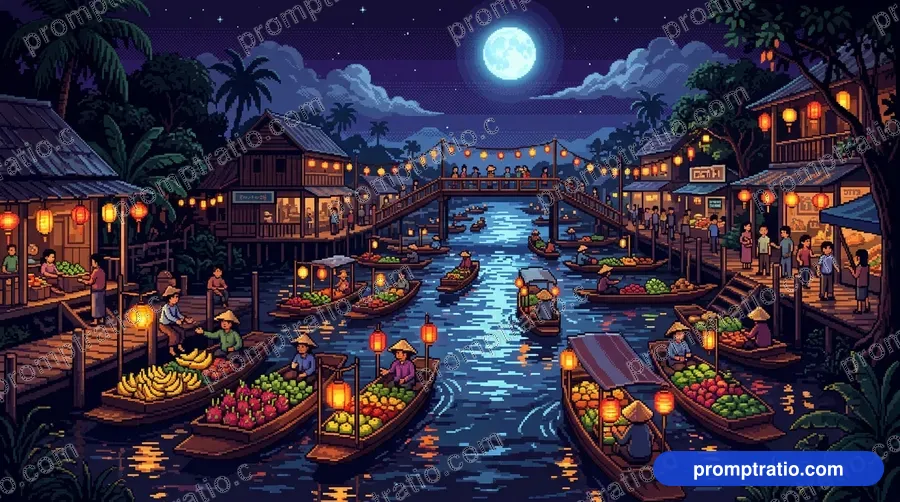 Pixel Floating Market at Night 16:9
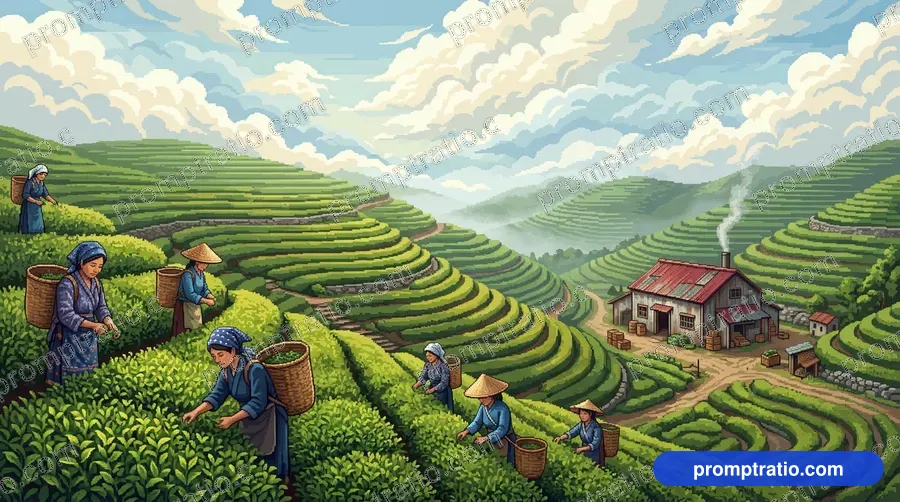 Pixel Tea Garden 16:9
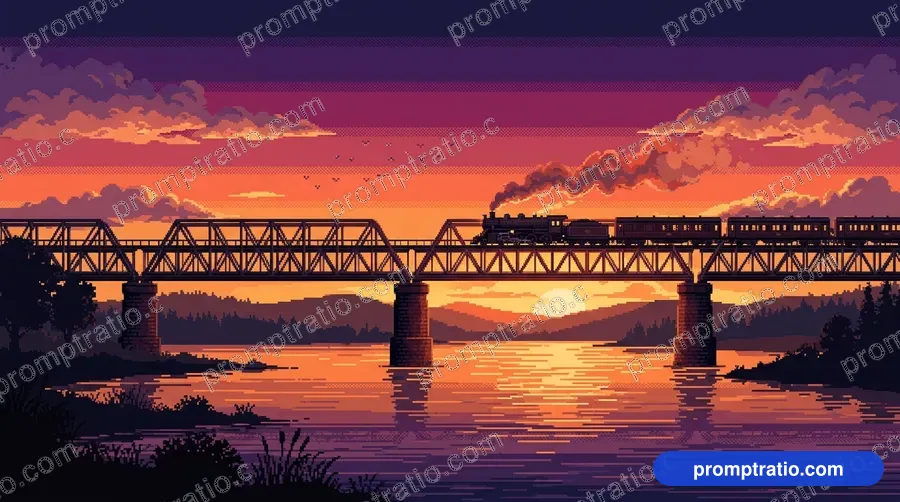 Pixel Train at Sunset 16:9